Basic operations
Canvas Gantt uses Redmine's display language. User-provided issue subjects, project names, and other data keep their original text.
Screen areas
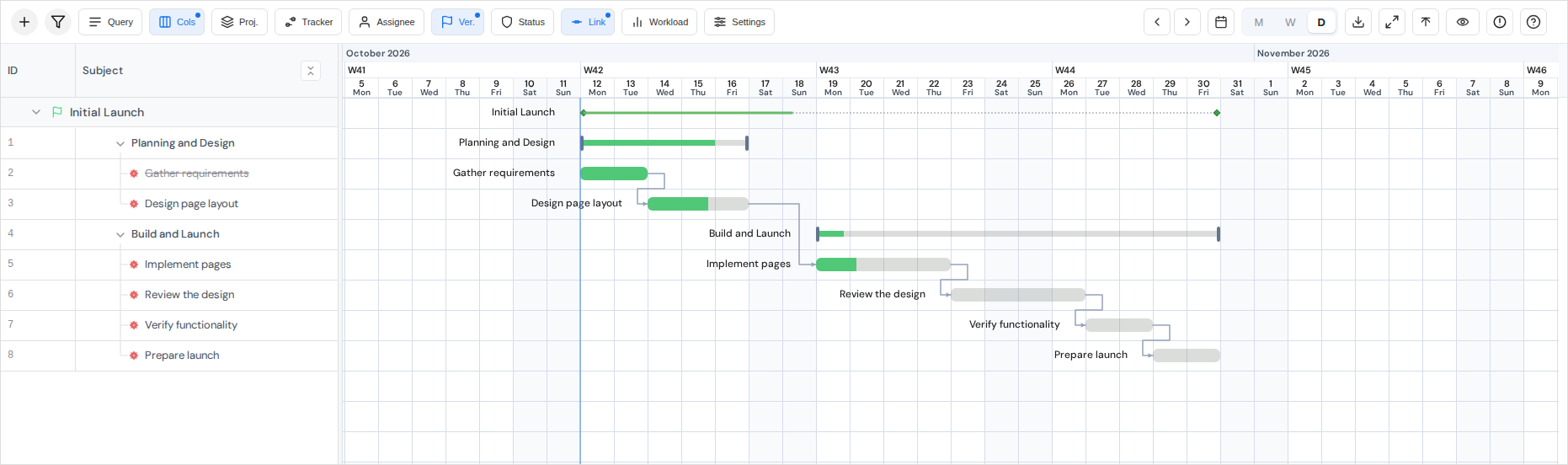
The sidebar on the left lists issue rows and selected columns. The timeline on the right shows task bars and dependencies. The toolbar provides filters, display scale, zoom, fullscreen, and auto-save controls.
Select and navigate
- Click an issue row in the sidebar or its task bar on the timeline.
- Use the wheel or trackpad to navigate the timeline. A horizontal scrollbar is also available.
- Switch between month, week, and day scales; use the Today control to move near the current date.
- Adjust zoom from the toolbar or hold Ctrl / Cmd while scrolling with the mouse wheel.
See the in-app help for other controls and keyboard shortcuts.
Change dates and duration
- Drag the task bar body to move its start and due dates together.
- Drag either edge to adjust one side of the date range.
With Snap to working days selected under Manual scheduling, non-working dates may move to the next working day for starts or the previous working day for due dates. To place tasks on non-working days, choose Allow any calendar day in display settings.
Edit a cell
- Show the column you want from the column menu.
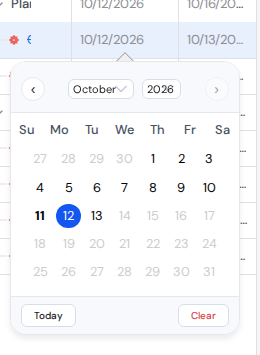
- Double-click an editable cell other than Subject. Editors are available for assignee, status, progress, start date, due date, priority, category, estimated hours, project, tracker, target version, and custom fields.
- Select or enter a value and confirm it. With auto-save on, the change is sent to the server; with auto-save off, it remains a draft.
Double-clicking the Subject cell does not start inline editing. Click the subject link to open issue details, or hover the row and click its pencil button to open Redmine's issue edit screen.
Available edits depend on the issue's Redmine permissions and workflow. See Permissions.
Save or discard unsaved changes
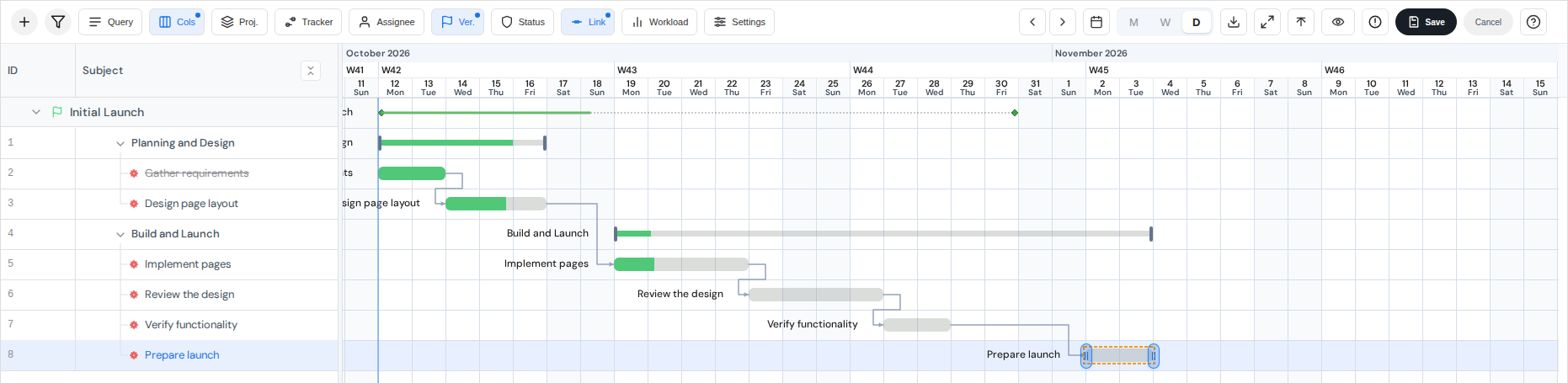
- With auto-save off, edit a cell. The toolbar shows Save and Cancel while task changes are pending.
- Select Save to commit pending changes.
- Select Cancel to discard all unsaved task changes and reload server values. This is not a per-issue or per-field undo.
Dependency drafts
Canvas Gantt also includes pending dependency changes in Save and Cancel. These actions appear as icon-only buttons; the Save tooltip shows separate task and dependency counts. See Dependencies for how these changes are staged and for cases that cannot be saved together.
With auto-save on, changes are sent immediately, so Cancel is not shown. To reverse a saved change, edit the values in Redmine's issue edit screen.
If a grouped date update conflicts, the whole change group remains unsaved and drafts are retained. Both automatic and manual saving use the save-conflict resolution steps.
Columns, row height, and fullscreen
Use the column menu to show or hide fields and drag column boundaries to resize them. See Display settings and export for row height, font size, fullscreen, and the scope of saved preferences.
Common checks
- Empty chart: check for issues with dates, filters, and the current timeline range.
- Edit not applied: check Redmine permissions and auto-save state.
- Dates adjusted: check the project business calendar and the date returned by the server.
See Filters, Dependencies, Display settings and export, and Permissions.