Baselines
A baseline is a schedule snapshot for comparison. It is not used for scheduling or critical-path calculations.
Save a baseline
- Open Canvas Gantt for the project.
- Open Save Baseline in the toolbar and choose Save filtered view as baseline or Save whole project as baseline.
- Review and confirm. Saving replaces the existing baseline, so keep any required record before saving.
Each project stores one baseline. Even when you save the whole project, comparison appears only for issues currently visible in the chart.
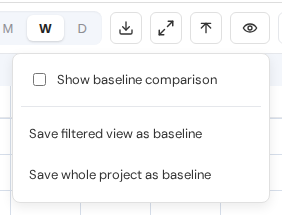
Baseline save controls. View full-size image
Compare with the current schedule
Open the toolbar's Save Baseline menu and select Show baseline comparison to overlay saved dates on each issue's current task bar. Hover over or select an issue to open a comparison popover with the current and baseline start date, due date, and duration. Differences are shown in calendar days. A positive start-date or due-date difference means the date is later than the saved date; a positive duration difference means the duration is longer.
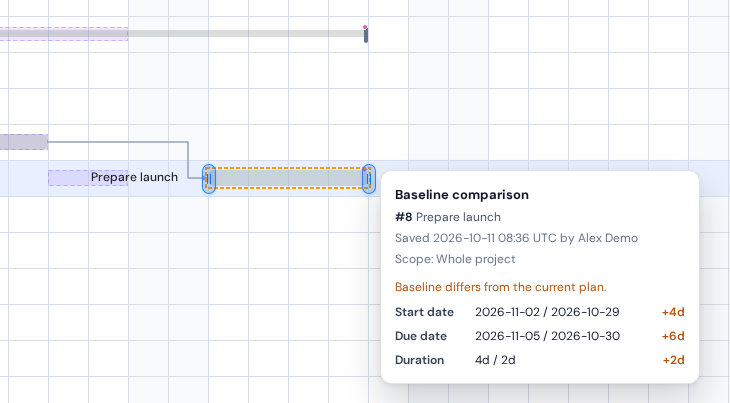
Saved baseline comparison. View full-size image
Delete a saved baseline
Choose delete from the baseline menu, check the save time, saver, and scope, then confirm. This removes the entire snapshot for the current project. Issues and current dates are unaffected. Deletion cannot be undone.
If another user replaces the baseline, review the latest snapshot before continuing. A timeout does not prove deletion failed. If the result cannot be confirmed, an error appears and the request is not resent automatically. Check the current state before trying again.
Permissions and storage
view_canvas_ganttis required to view baseline comparison.manage_canvas_gantt_baselineis required to save, replace, or delete a baseline.- See Administration settings for baseline storage and settings management.
- See Installation and removal for data removal during uninstall.