Dependencies
Dependencies appear as lines between issues on the timeline. precedes / follows are used as scheduling constraints; reference-only relates and blocking relations have different behavior.
Manual save
With Auto save off, dependency changes stay as drafts. Select Keep changes pending in the editor, then use Save in the toolbar to save them together with task edits. With auto-save on, changes are sent immediately.
- New and updated links appear dashed and take part in scheduling checks and critical-path calculations. Links staged for deletion are excluded from these calculations.
- The Save tooltip shows separate task and dependency counts.
- Cancel discards all unsaved task and dependency changes, including editor input. It cannot undo saved changes.
- If a change cannot be staged while saving, the editor retains your input and shows an error. Try again after saving finishes.
Tasks are saved first, followed by dependencies. A failure can leave some changes saved and others pending. Check the remaining drafts and errors before retrying.
Some changes cannot be saved together, such as moving a successor earlier when an existing predecessor relation must be removed first. Save the relation change first, then edit and save the dates.
Failed or unknown saves
Rejected changes, such as permission or validation errors, remain marked Failed. Correct the error before retrying.
If a timeout or ambiguous response prevents confirmation, the change remains Unknown and is not resent automatically. Check the server state in the right-side review panel. Reopen it with Review dependencies, or Resolve conflicting changes when task conflicts are also present.
- Mark as applied: use when the server shows the intended change.
- Retry after review: use when the change is absent and the original state is still current.
- Retry failed dependency saves: saves failed changes again. Other pending changes may also be included.
Both endpoint issues must be visible to check the result. Adjust filters to include them. If the state differs or cannot be checked, leave the change unresolved and review it in Redmine.
Unknown creates and updates are excluded from scheduling calculations until confirmed. An unknown deletion keeps the existing link and its scheduling constraints. Unconfirmed task saves also retain their drafts, including new edits made during review.
Create a dependency
- Drag from a dependency handle near either end of the predecessor task bar.
- Drop near the successor issue's task bar.
- If Auto apply default relation is off, an editor popover opens. Choose a relation type and any required delay, then select Save (Keep changes pending with auto-save off). If it is on, the relation is created using the default type selected in toolbar settings.
The editor offers three types:
- Precedes: the predecessor issue must finish before the successor starts. This is the only type with a delay field; delay is a non-negative number of working days.
- Relates: a reference link with no scheduling constraint.
- Blocks: one issue blocks the other.
When the stored relation is the reverse type follows or blocked, the editor reverses the displayed issue order. The scheduler uses precedes / follows for start-date constraints.
Default type and delay
Use toolbar relation settings to choose the default type, automatic delay calculation, and automatic application. Auto delay uses the predecessor's due date (or start date when no due date exists) and the successor's start date, with the successor issue's project calendar. If dates are missing, the UI reports that it cannot calculate the delay.
Edit or remove a relation
- Click a dependency line on the timeline.
- Change the type or delay in the editor popover, then select Save (Keep changes pending with auto-save off).
- Select Delete in the popover to remove the relation. You can also right-click an issue and remove a relation from the list of related relations.
Duplicates, cycles, permissions, and date consistency can prevent a save. Editing requires visibility and permission for the related issues. Cross-project relations follow Redmine's cross_project_issue_relations setting.
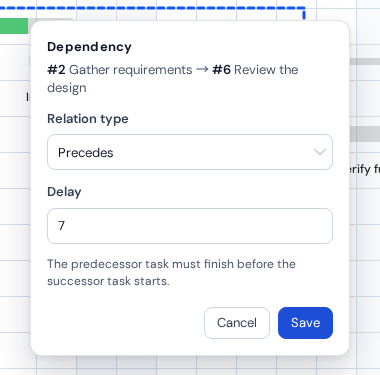
Dependency editor. View full-size image
Scheduling behavior
Automatic scheduling and dependency validation use the issue's project calendar. The successor issue's calendar is used for minimum-start checks. See Business calendars for calendar setup.
The toolbar's Organize by dependencies option changes display order; it does not create or remove relations.