Display settings and export
Adjust the view
Use the toolbar and display settings to adjust zoom, month/week/day view, row height, font size, sidebar width, and visible columns and their order. Drag column borders to resize them. Fullscreen is also available.
You can also toggle the progress line, task titles, task-bar dates, hierarchy lines, date-only task markers, version headers, baseline visibility, and dependency-based sorting.
Under Manual scheduling, choose Snap to working days or Allow any calendar day. Use the latter to place tasks on non-working days manually. Dependency constraints still apply.
Use Standard, Maximize List, or Maximize Chart to switch the pane layout.
Calculate critical path under Calculation & Performance is on by default. Turn it off to stop critical-path and total-slack calculations and notifications. Dependency-based automatic scheduling remains available.
Preferences are stored in browser localStorage, not in a Redmine user record. You can apply them per project or across all projects in the same browser profile. “All projects” does not mean all Redmine users; anyone using the same profile will see those settings.
Clearing the browser's site data also removes saved display preferences.
The tracker icon map sets the icon shown beside each issue subject by tracker ID. Supported values are todo, defect, ticket, document, milestone, and link. Example: {"1":"defect","2":"todo"}.
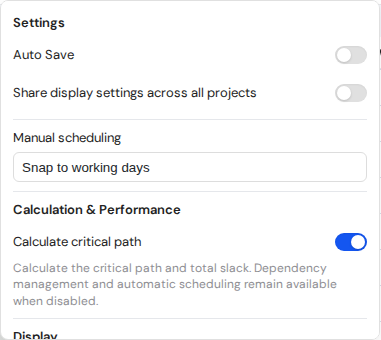
Display settings. View full-size image
To show or hide the Progress Line, select it in the toolbar. This line starts at today's position and connects one point per issue row: the point is placed on the task bar according to its progress percentage. Closed issues and future issues that have not started are placed at today's position. This is separate from the vertical today line.
Issue dialog size
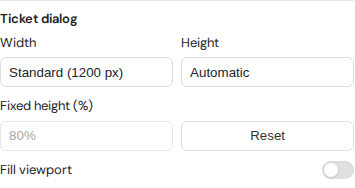
Open Settings in the toolbar and scroll to Ticket dialog. Changes take effect immediately.
| Setting | Options and behavior |
|---|---|
| Width | Compact (900 px), Standard (1200 px, default), or Wide (1500 px), capped to fit the screen. |
| Height | Automatic (default) or Fixed. Fixed height ranges from 50% to 90% of the viewport in 5% steps (default 80%). |
| Fill viewport | Uses the entire browser viewport. Width and height controls are disabled while enabled. |
| Reset | Restores Standard width, Automatic height, and 80% fixed height, and turns off Fill viewport. |
These settings apply to issue display, editing, creation, subtasks, and comment editing. Time-entry and query dialogs are excluded. They use the same storage scope as other display preferences.
PNG and CSV
- Show the timeline in the right pane.
- Open Export in the toolbar and choose an option.
| Option | Output |
|---|---|
| Export PNG | The chart currently visible on screen. |
| Export full PNG | All rows and the full date range in the current view, including areas outside the viewport. |
| Export CSV | Visible task data with hierarchy and dependency columns. Numeric columns remain numeric. |
Export is unavailable while the right pane is hidden.
To reduce formula execution risk in spreadsheets, exported untrusted text that begins with =, +, -, @ (including full-width forms), a tab, or a line break may receive a leading tab inside a quoted cell. That tab becomes cell data and can affect programmatic imports. Verify the actual file in the target Excel / Calc version and import path where needed. The export cannot guarantee safety for every spreadsheet or import route.
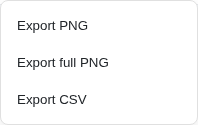
PNG, full PNG, and CSV export menu. View full-size image
Export full PNG
Export full PNG uses the current zoom, row height, filters, sort order, and collapsed groups. It includes enabled baselines and labels, and excludes the sidebar, workload pane, selection, and hover indicators.
Images are limited to 8192 px per side and 16,777,216 pixels in total. Long labels count toward the width. If the limit is exceeded, reduce zoom or row height, or filter out rows before trying again.
Display preferences versus shared query state
Display settings and filters are separate. See Filters and saved queries and URL and query parameters for conditions that can be shared in a Redmine query or URL.